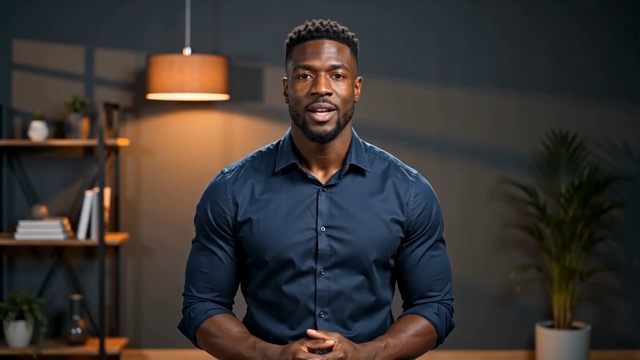
Original video
AI result

Create Realistic Videos with Video to Video AI

Replace the person in your video using a character image. Keep the original scene, motion, and camera as your guide. Compare the videos below, then create your own version.

Create with your AI agentChatGPTClaude CodeCursor

Recreate a video with a new character.

Example video + character photo
Open in Studio

Explore in Studio without signing in. Example footage, a character photo and an editable prompt are ready for you.

Explore the possibilities
ONE REFERENCE. ENDLESS DIRECTIONS.

Create product ads, UGC videos, and cinematic stories with video to video AI

Start with a reference video. Choose a new character, recreate the performance, and refine your scenes in StarCut.

  • A teal running shoe suspended over a stone plinth in a sunlit product commercial
    01

    Make product video ads

    Turn your own product demo into new ad creative. Use an AI ad cloner workflow to try different presenters, with the original setting and product demonstration as references. Edit the selected take into your next product ad.

  • A male creator demonstrating a coffee grinder to a phone camera in his kitchen
    02

    Create realistic UGC ads

    Recreate a creator-style entrance, gesture, or opening with a new on-screen character. Use a viral video remaker workflow to reference the performance, then trim the take and combine it with your product footage for a UGC-style ad.

  • A woman with a yellow suitcase waiting at a seaside railway station at sunrise
    03

    Build cinematic stories and refine each scene

    Use a video remaker to try a new character in footage you already have. Review each AI video recreation for appearance, movement, and scene continuity, then arrange the selected shots on StarCut’s timeline to shape your story.

Scene concepts · Find a direction for your next video

CREATIVE CONTROL

What you can do with video to video AI

Original video
AI result
Same scene. A new lead.
01

AI character swap. A new lead in your original scene.

Create a video character swap from your footage and a character image. Guide the face, hairstyle, clothing, and overall appearance while using the original background, framing, and camera as references.

Recast a presenter or preview a new on-screen identity without inventing the scene from scratch. Start with a clear subject image, then review the character, props, and background details in the new take.

A tennis player with successive swing positions illustrating motion guidance

Scene concept

02

AI motion control. Let the reference lead the performance.

Use AI motion transfer to guide a new character with the gestures, posture, and movement from your reference video. Follow a presenter’s hand gestures, a walking pace, or the opening action of a creator clip.

Recreate video with AI around a performance you already have. Specify the action and camera movement to follow, then test a short take before using the sequence in your final edit.

An orange juice ad storyboard and editing timeline on a producer’s worktable

Scene concept

03

AI video remaker. From ad reference to an editable cut.

Use an AI ad cloner workflow to explore new presenters for your own product ad. Keep the demonstration and setting as creative references, then compare short casting variations before committing to the full edit.

An AI video remake stays useful when you can keep editing it. Trim the selected take, combine it with product footage, and adjust the pacing on StarCut’s browser timeline before export.

How to recreate video with AI

  1. Step 1

    Upload your reference

    Choose a short clip with one clearly visible person and simple movement.

  2. Step 2

    Choose your character

    Use a clear character image. Specify which person changes and which scene details should stay.

  3. Step 3

    Generate and refine

    Check hands, identity, and background details. Trim and arrange the selected take before export.

THE COST. THE WORKFLOW. THE DIFFERENCE.

StarCut vs others

Compare ongoing paid use after trial credits
CompareCost & workflowStarCutPay as you goRunwayStandard planHiggsfieldStarter planOpenArtStarter plan
01Subscription costs
Recurring platform fee$15/month, billed monthly$15/month, billed monthly$14/seat/month, billed monthly
After trial creditsChoose a paid plan for ongoing accessChoose a paid plan for ongoing accessChoose a paid plan for ongoing access
Extra generation budgetExtra credits: 1,000-credit minimum purchaseCredit top-ups offered with paid plansRecurring add-ons require an active eligible plan
02Models & finishing your video
Entry model accessAll AI video and image models on StandardSelected models and features on Starter100+ premium models on Starter
Finish your selected takeGenerative tools and creative appsKatana and creative editing toolsStoryboard and refine scenes in Director

USD entry-plan prices with monthly billing, checked November 2026. Trial offers and included credits differ. Generation costs depend on the model; this is not a per-video price comparison.

Source information checked:

FAQ

What is video to video AI?

Video to video AI transforms existing footage into a new clip using the source as visual or motion guidance. It can cover many editing tasks. This StarCut workflow focuses on replacing a character while using the original background, action, and camera as references.

How do I make a character swap AI video?

Open Studio with the example reference video, character photo and editable prompt already prepared. You can review the example or replace the materials before signing in. Sign in when you create a project, then review the instructions and choose a compatible model for your first take.

Can I swap a character without changing the background?

An AI character swap uses your original scene as a reference. Keeping the background is the goal, but generative editing can alter scene details. Inspect edges, shadows, reflections, and areas revealed behind the new character. For a shot that requires exact background preservation, plan masking and compositing rather than relying on generation alone.

Is AI motion control the same as character replacement?

They describe different parts of the job. Motion control guides how a subject moves; character replacement changes who appears. A recast shot may need both. The degree of control depends on the selected model, reference quality, and action complexity.

Is this an AI video cloner?

If you use “AI video cloner” to mean making a new take from your own reference, this is a useful workflow. It does not promise an identical copy. Use footage and likenesses you have permission to adapt, and review the generated take as new material.

Does it replace captions or text in the video?

This workflow is designed around character replacement and motion guidance, not automatic text replacement. Ask to preserve existing text and check it in the output; generation can still distort letters or brand details.

Can I try video to video AI for free?

StarCut offers daily free credits to try an AI video remake before buying a credit pack. Generation uses credits, with the cost shown before a run in Studio. Test a short take first; free trial credits do not mean unlimited free videos.

How do I avoid distorted hands in AI motion transfer?

Start with a short reference clip where hands are visible and movement is simple. In AI motion control, review fingers, fast gestures, and moments when hands cross a face or product. A video character swap can still produce artifacts, so inspect the full take before exporting.

Looking for an “ai video generator free online”?

For an online trial, StarCut provides daily free credits and a browser-based Studio. Upload your own reference footage, choose a compatible model, and review the credit cost before generating. Free trial credits do not mean every generation is free.

Is StarCut a free AI video generator with no restrictions?

StarCut uses generation credits and model-specific limits. Check the supported inputs, clip duration, usage permissions, and cost in Studio before starting. This workflow does not offer unrestricted generation.

What does “AI Video Generators for FREE & UNLIMITED Videos” mean for this workflow?

When comparing offers with this wording, check credit caps, supported models, export conditions, and usage terms. StarCut offers daily free credits; unlimited free AI video generation is not included in this workflow.

Make Realistic AI Videos in StarCutLighting, Characters, and Motion